
OCEAN BEACH CHRISTIAN FELLOWSHIP
How to Use Groups
One of the best features of the OBCF Members App is the "Groups" feature. This allows you to communicate with members of various groups without the need for text chains. Now there is no need to start a new text chain or struggle to find the latest one for home groups, prayer groups and the like. Just join the appropriate group in the app and you're all set. If you aren't getting the notifications you want for groups, check our directions on how to set up your notifications here.
To communicate in groups you will need to join one first. To join a group, tap the "Groups" icon at the bottom of the app or the "Groups" image on the home screen of the app.

Or

You'll need to join a group in order to communicate in the chat. Once on the "Group" screen, tap the "Group List" link. On the next screen, search for the group you would like to join. All groups are private and are locked. They require administrative permission to access. If you would like to join a group, you will need to tap "Request to Join" and fill in the information requested (usually just your name). KB Designs will confirm with the appropriate group leader before access will be given.
We are trying to make this process as easy as possible, while making sure these groups are secure. These are intended to be safe digital spaces that the folks at OBCF can use to support each other. We are committed to making sure that random people that aren't associated with our church or would use the info to do someone harm, is unable to access these groups. Thank you for your understanding and for helping us keep these groups a safe place for Christians to support each other.


Once you join a group you will be able to post in said group. This will change the way your "Groups" screen in the app looks. You will have a new "share something" box that you can click on. You also see the posts from ALL the groups you are a part of. You will also see a slider with all the groups you are a part of. This will allow you to navigate between groups quickly.


When you select the text box, you will be directed to a screen with all of the groups you are a part of. Select the group you want to leave the comment on. You will have the option to create a title and to design the post using the options at the bottom of the screen.


How to Customize Group Messages
There are a TON of customization option for your posts in groups. First let's take a look at customizing a standard post.
First let's take a look at the fonts format tool. Clicking the "Aa" icon will change the bottom bar to a font format tool. You can use this tool to make your text bold, italicized, or underlined. You can add links and create bullet points as well.


How to Add A Picture in Group Messages
Next up is the camera icon. This one will open the media on your phone and will have a couple of icons at the bottom of the screen. The camera icon will open the camera on your phone and allow you to take a picture of something you are looking at and upload it right to the app.

Or
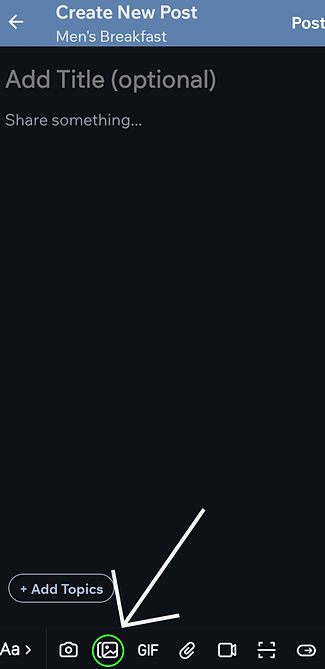
You should then have the ability to Select a picture from your phone.

Not seeing the image you want? Try checking the "collections" tab.


How to Add A GIF
GIF's are a great way to express emotion in a fun and engaging way. Using GIF's in messages really helps to give a chat group a lot of personality. The GIFs in this app are managed by Wix and so some GIFs might not be appropriate to share in the OBCF Members App. For more info about this please make sure you read our app policy available in app.
These directions start from with-in a message in a group chat. If you need to know how to get to the following screens, start here.
Once on the comment screen in the group you want to leave the post on, select the GIF button in the bottom menu.

You will then be greeted with a screen that has popular GIFs on it.

Type your "keyword" in the search bar at the top of the screen. For our example we used the keyword "pray." Scroll on the screen until you find one that works for the message you are creating. Once you find it, tap on the GIF you want to use.

You should be taken back to your message after tapping the GIF you want to use. Fill in the title for your post at the top of the screen and write the message you want to send with the GIF underneath it.

If decide that you would rather use a different GIF after you have already picked one, tap on the "replace" button at the bottom of the screen.


How to Share Documents
Sometimes we may need to share documents within our church groups—such as Word files, Excel spreadsheets, or PDFs. If you’d like to share a document, please follow the steps below to ensure it’s uploaded properly.
Be mindful not to share any personal or private information through the app. Ocean Beach Christian Fellowship (OBCF) and its affiliates cannot be held responsible for the protection of personal or sensitive information shared within group chats or posts. Please share wisely and with discretion.
To share a document, open up a message in the appropriate Group. If you need instruction on how to open a message in Groups, please start here. Once you have the message open in the correct group, select the paper clip at the bottom of the screen. Then tap "upload from device."


When you click on the link, you will be taken into the files on your phone. The screen that pops up will be different for each person depending on how your phone is set up, so your screen might not look exactly like the example below. To search for files on your phone, tap the 3 lines in the top left of the screen. This will open up a menu that will allow you to search your phone and any cloud storage you have connected to your phone. You might need to sign into accounts like Google, iCloud or Dropbox before you can use them with the app.


Once you find the correct file, tap it. You will be taken to the following screen. Just tap "next" in the top right of the screen.

Once the document is attached, fill in the title and write a message if one needs to go along with the document, then tap "post" in the top right of the screen. If you accidentally attached the wrong document, select the "replace" button in the bottom left of the screen. Follow the previous steps to find the correct document.

Or


