top of page

How to Join the App

You must download the Wix "Spaces" app from the app store. The best way to do this is to go to oceanbeachfellowship.org from your mobile phone. You should be greeted with a banner at the bottom of the screen inviting you to download the app. You can also click HERE. You should be routed to the proper app store to download the app. If you click the link from a desktop or laptop computer, you will be taken to a page that requires you to scan a QR Code from your phone to get the app.

Once You have downloaded the app to your phone, open it. You will see a page that looks like the image below. On this page click the "Got an invite code?" button.

On the following screen enter the invite code "FV0VWW" then click the "Join" button. That is a "zero" in the code not a "O" for clarity.

Screenshot_20251007_104106_Spaces by Wix_edited_edited.jpg

You will then need to click the OBCF image. This will take you to the app inside of the Wix Spaces app. 

Screenshot_20251007_104207_Spaces by Wix_edited.jpg

On the following screen you will need to click on the "Join" Button.

Screenshot_20251007_104120_Spaces by Wix_edited_edited.jpg

You will need to select your preferred sign-in option.

Screenshot_20251007_104131_Spaces by Wix_edited.jpg

Using a Google account or Facebook account will be the easiest and fastest way to create your profile in the OBCF Members App.

If you select the "Continue with Email" button you will be taken to a page asking for your email address. Enter the address you want to use and continue. You will be taken to a password page next. On the password page you need to enter the password for the email address you entered on the previous screen. Once the correct password is selected you will most likely need to prove you are human by doing a "Captcha" of some sort. 

You will then get an email at the address used to create your account on the OBCF app with a 6 digit verification code. Go to your email and enter the code.

Screenshot_20251007_111939_Spaces by Wix_edited.jpg

From there you may need to re-enter the invite code if you aren't taken directly to the church app. To do so, scroll to the bottom of the page and click the "Join With Code" link. 

Screenshot_20251007_112239_Spaces by Wix_edited.jpg

On the following screen enter the invite code "FV0VWW" then click the "Join" button. That is a "zero" in the code not a "O" for clarity.

Screenshot_20251007_104106_Spaces by Wix_edited_edited.jpg

You might see this page one more time. If so, select the "Join" button one more time.

Screenshot_20251007_104120_Spaces by Wix_edited_edited.jpg

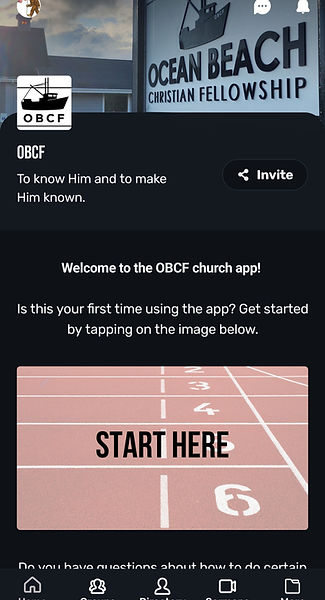
Once you have properly downloaded the app, created your Wix account and joined the website, you should see a screen that looks like the image below.

Screenshot_20251007_114130_Spaces by Wix_edited.jpg
bottom of page